


Windows 10: Useful tips and tricks you need to know
- Posted by: Adriene Hall

- Nov 1, 2019
- 3 min read
Windows 10 is the most powerful operating system that Microsoft has ever made, but it's also the most complex. While the user interface is extremely intuitive, you'll have to dig a little deeper to customize your experience, get maximum performance and make the most of features. If you're still using Windows 7 and dread its impending death, then we've put together these tips and tricks to ease your transition into Windows 10.

Search Box
On Windows 10, you can click the Start button and start typing without a search box. If you really want a search box, right click on the task bar, hover over Cortana and click "Show Search Box."


Access the Hidden Start Menu
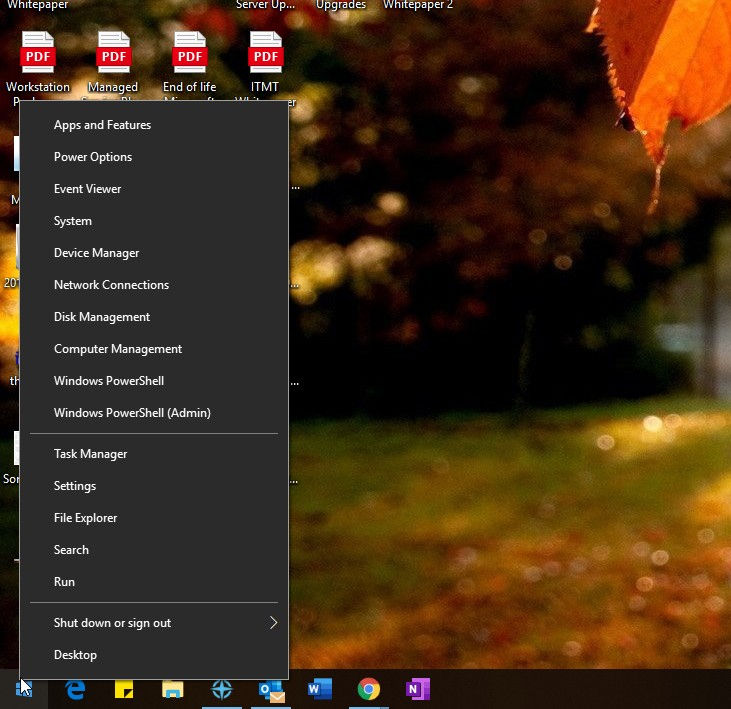
If you find yourself missing the traditional Windows Start menu, right-click the Windows icon in the lower-left corner of the screen. A menu will pop up showing common administrative tools, folders, and shutdown options.
Copy and Paste With Cloud Clipboard
Windows 10 has a cloud clipboard feature that allows you to see a history of items you have copied. You can even pin items that you want to reuse or review more than once.
Press Windows Key + V to open the cloud clipboard. You can access clipped or copied text, images, and more on any computer as long as you are signed in to the same Microsoft account.

Quickly Show Your Desktop
In previous versions of Windows, the Show Desktop button was located in the lower-right corner of the screen next to the time and date. Now, there is a feature called the Action Center. (The Action center can be accessed by clicking the small word bubble on the bottom right hand of your screen.)The Show Desktop button is still there; it has just been significantly trimmed down. If you click the small, rectangular spot just to the right of the Action Center, you will be taken to your desktop.


Tip: Alternatively, use the keyboard shortcut Windows Key + D to instantly go to your desktop.
Minimize Windows With Aero Shake
Although it was actually introduced in Windows 7, Aero Shake is a little-known feature that is still available in Windows 10. To use Aero Shake, click on the title bar of a window that is not maximized. While holding down the mouse button, "shake" the mouse around. Any other open windows will be minimized. You can bring them all back up by grabbing and shaking the window once more.
Microsoft Edge Reading Mode
Even if you use Chrome, Firefox, or another web browser as your primary means of accessing the internet, you might want to check out Microsoft Edge when you are trying to read or study without distractions. Microsoft Edge Reading View will eliminate banners, ads, and navigation elements of a website, turning the content into a magazine-style format that is easier on your eyes.
Note: Reading Mode will only work on sites that support this feature.
Add Contacts to Your Taskbar With My People
The My People feature in Windows 10 allows you to add three contacts to your taskbar. You can use it to get in touch quickly via Skype or email. To begin using My People, select the People icon on the taskbar, select Get Started, and then follow the on-screen instructions. If you don't see the My People icon, right click on task bar and check "Show People on the taskbar."

Night Light
The blue light emitted by electronic devices can prevent you from falling asleep at night. Windows 10 has a built-in Night Light feature that lets you schedule times when your computer screen switches to warmer colors instead
1. Open your Windows Settings and select System.

2. Select Night Light Settings under Display.
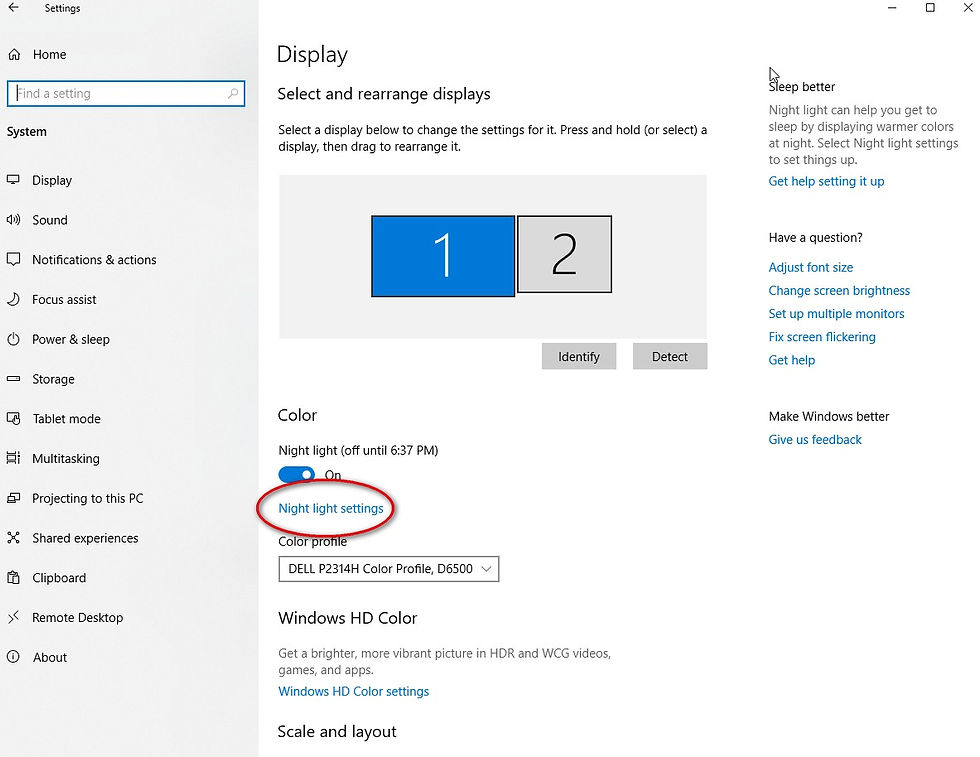
3. Choose the settings you wish to use under Schedule.
Tip: Choose Sunset to Sunrise for the Night Light feature to automatically turn it on at night and turn it off in the morning.
When you're done, you can close the window and the settings will automatically take effect according to the schedule you set.


Comments