


Outlook 365 Tips & Tricks
- Posted by: Adriene Hall

- Oct 29, 2018
- 2 min read
Check out these cool new Outlook 365 features from Microsoft!
Spice up your signature
End your messages with a signature that reflects your unique style.
1. In an email message, select Signature > Signatures.
2. Select New, give your signature a name, and create your signature. Add graphics and links or get creative with fonts and colors.
3. Select OK to start using your new signature.

Tame your inbox with Clean-up Overwhelmed trying to achieve Inbox Zero? Folder Clean-up can help.
1. From your Inbox (or any other email folder), select Home > Clean Up.
2. You can Clean Up Conversation, Clean Up Folder, or Clean Up Folder & Subfolders. 3. Outlook will automatically move redundant, read messages to the Deleted Items folder.
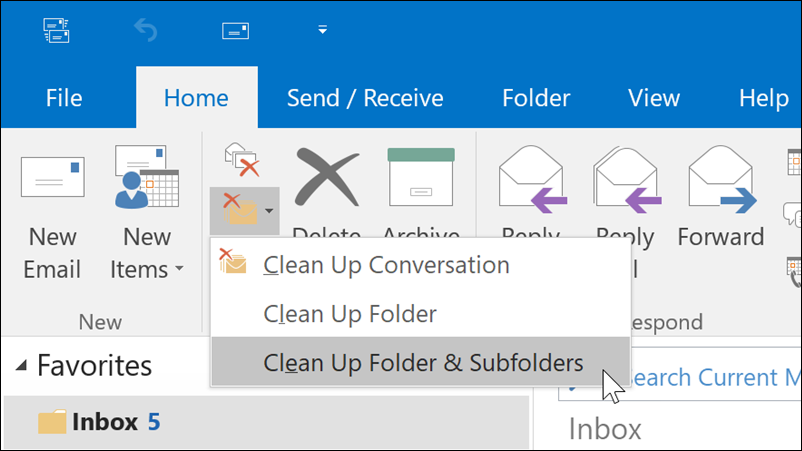
Folder clean-up will never remove unread messages.
Why send a copy when you can send a link instead?
Collaborating with colleagues on a report or project? Don't send copies. Send a link instead.
The trick is to upload files to OneDrive and then send everyone a link to the files. Your recipients can collaborate on the same file at the same time, and you don't have to scour your inbox for multiple copies.
1. Select Attach File > Browse web locations > OneDrive.
You can tell you're sending a link to a OneDrive file because the attachment icon will have a cloud on it.

Let them know you're awayWhen you're on vacation or out of the office, email piles up. Let senders know you're away, and give them someone else to contact during your absence. They get what they're looking for, and you get to keep that vacation glow.
1. Select File > Automatic Replies > Send automatic replies.
2. Type the message that will be displayed to senders, and select OK.

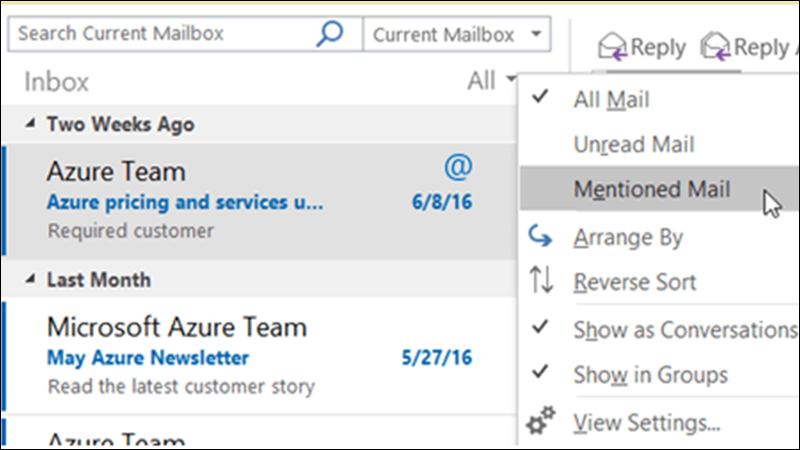
Tag contacts [with @Mentions] and be heardNo excuses for missing emails. Use @Mentions to get noticed.
1. In the body of your email message or meeting request, type @ followed by a person's first and last name.
2. Select the name to see it highlighted in the body and added to the To line of the email.
The recipient will see an @ symbol in their message list.
Turn that email into a PDFNeed to create a PDF from your email message? Print it with Windows 10!
1. Click Ctrl+P to open the Print dialog, then select Microsoft Print to PDF as your printer.
2. Once you select Print, pick a folder, name your PDF, then select Save.

Smarter meetings with Skype and OneNote
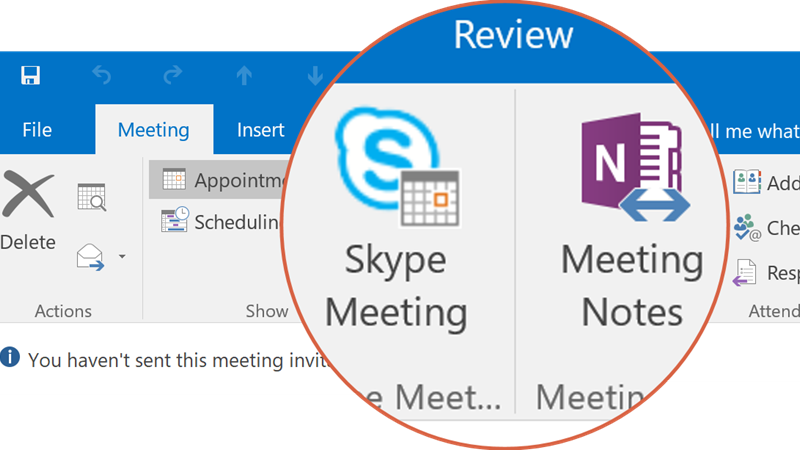
Before sending that meeting request, make it a Skype meeting and set up a shared space for meeting notes.
1. Before you send the meeting request, select Skype Meeting. An online meeting link will be created automatically and inserted into the meeting request.
2. For shared notes, select Meeting Notes.
3. Create a new OneNote notebook or select an existing one. A link to the notebook will appear in the meeting request.
Conquer Outlook with keyboard shortcuts Speed through Outlook with keyboard shortcuts.
Do you want to create a new email message? Press Ctrl+Shift+M. For a new contact, try Ctrl+Shift+C. Outlook has you covered with appointments and meetings too. Ctrl+Shift+A creates an appointment, while Ctrl+Shift+Q opens a new meeting request. What's the most popular Outlook keyboard shortcut? Ctrl+Enter sends your message.

Click here for the complete list of keyboard shortcuts.


Comments