


How to Use the Speco Multi-Client to View your Footage
- Posted by: Adriene Hall

- Aug 17, 2018
- 2 min read
Updated: Aug 23, 2018
Step-by-step instructions on how to view your security footage with the Speco MultiClient.
Connect and Disconnect
Connect
1. Select site/sites to connect from the directory window.

2. Click Connect Button

Once you're connected, your channels will display as shown below:

Disconnect
1. Select site to disconnect from directory window.

2. Click the disconnect button.

Access Previously Recorded Video
1. Double-click the desired channel/window of the view you'd like to see.
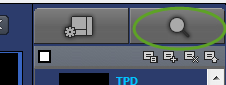
2. Click the Remote Playback (magnifying glass) button in upper right hand corner.
3. Go to the calendar located on bottom left of screen, and click on the date of your choice. The dates highlighted in blue are the dates available for viewing.
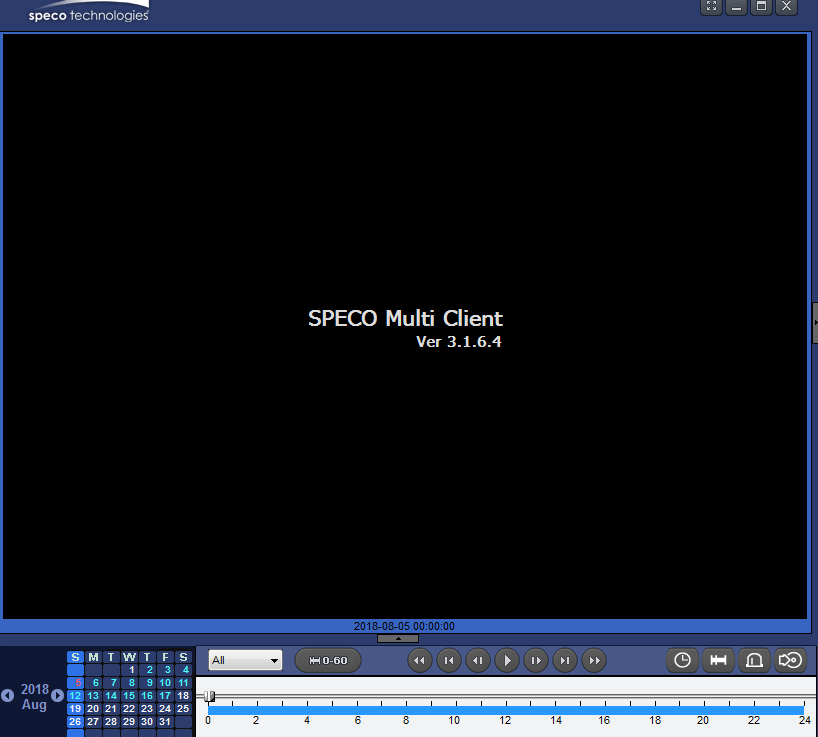
4. On the player section, click the play button. Your footage window will pop up.


5. To enlarge the screen you’re viewing, right click on the camera window you have open. Scroll to “Aspect Ratio” and select “Fit to Screen”.


6. To access the previous directory window without closing your current view, click on the blue top margin and pull down. You will see the original window behind your current window.

Export Video
1. Go to calendar and select the date. Below the camera view, use the bar to set to the desired time. Click play.

2. Click the “EZ Copy Start” button. This will be the start of the video. Use the bar again to determine the end of video.

3. Once you have moved the bar to the desired end place, click the "EZ Copy End" button. This will be the end of the video.

4. Click the “Backup” Button.

5. Make sure the correct channel/channels are selected.

6. If the Start Time and End Time are not correct, you can manually adjust this.

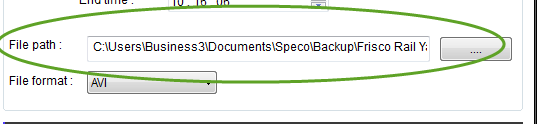
7. Click the “OK” button. Your video download will begin and can be found on your computer at the indicated file path.
If you have any questions about operating your Speco MultiClient, give us a call at 469-287-7095.


Comments