


How to Turn Off Notifications on Chrome
- Posted by: Adriene Hall

- Dec 18, 2018
- 1 min read
By default, Chrome alerts you whenever a website, app or extension wants to send you notifications. Annoying, right? You can change this setting at any time.
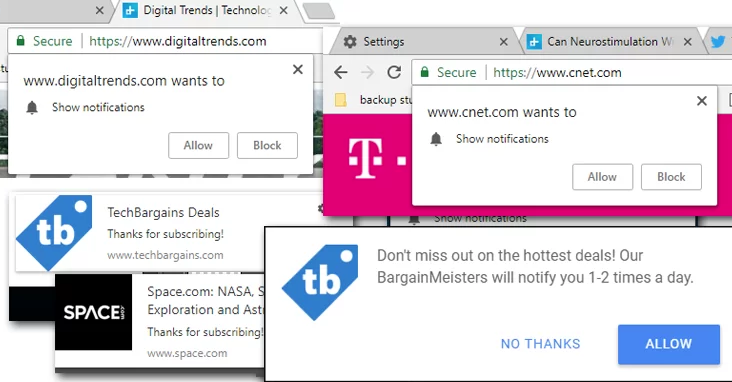
Computer- Allow or block notifications from all sites
1. On your computer, open Chrome.
2. At the top-right, click the three dots in upper right-hand corner.
3. At the bottom, click Advanced.
4. Under 'Privacy and security', click Content settings.
5. Click Notifications.
6. Choose to block or allow notifications:
* Block all: Turn off Ask before sending.
* Block a site: Next to 'Block', click Add. Enter the site and click Add.
* Allow a site: Next to 'Allow', click Add. Enter the site and click Add.
Android- Allow or block notifications from all sites
1. On your Android phone or tablet, open the Chrome app.
2. To the right up side of address bar, tap the three dots.
3. Tap Site Settings and then Notifications.
4. At the top, turn the setting on or off.
Allow or block notifications from some sites
1. Tap Site Settings and then Notifications.
2. Go to the website from which you don’t want to receive notifications.
3. To the right of the address bar, tap the three dots, then Info.
4. Tap Site Settings and then Notifications.
* If you don't see the setting here, this website can't send you notifications.
5. Choose Allow or Block.
Luckily, Chrome does not get notifications on iPads or iPhones.


Comments